
Build a workflow
Create a workflow on the canvas or with the AI builder, add and configure steps, test it and deploy it.
You can build a workflow by placing nodes yourself or by describing what you want and letting AI draft it. Either way you end up on the same canvas and can edit everything.
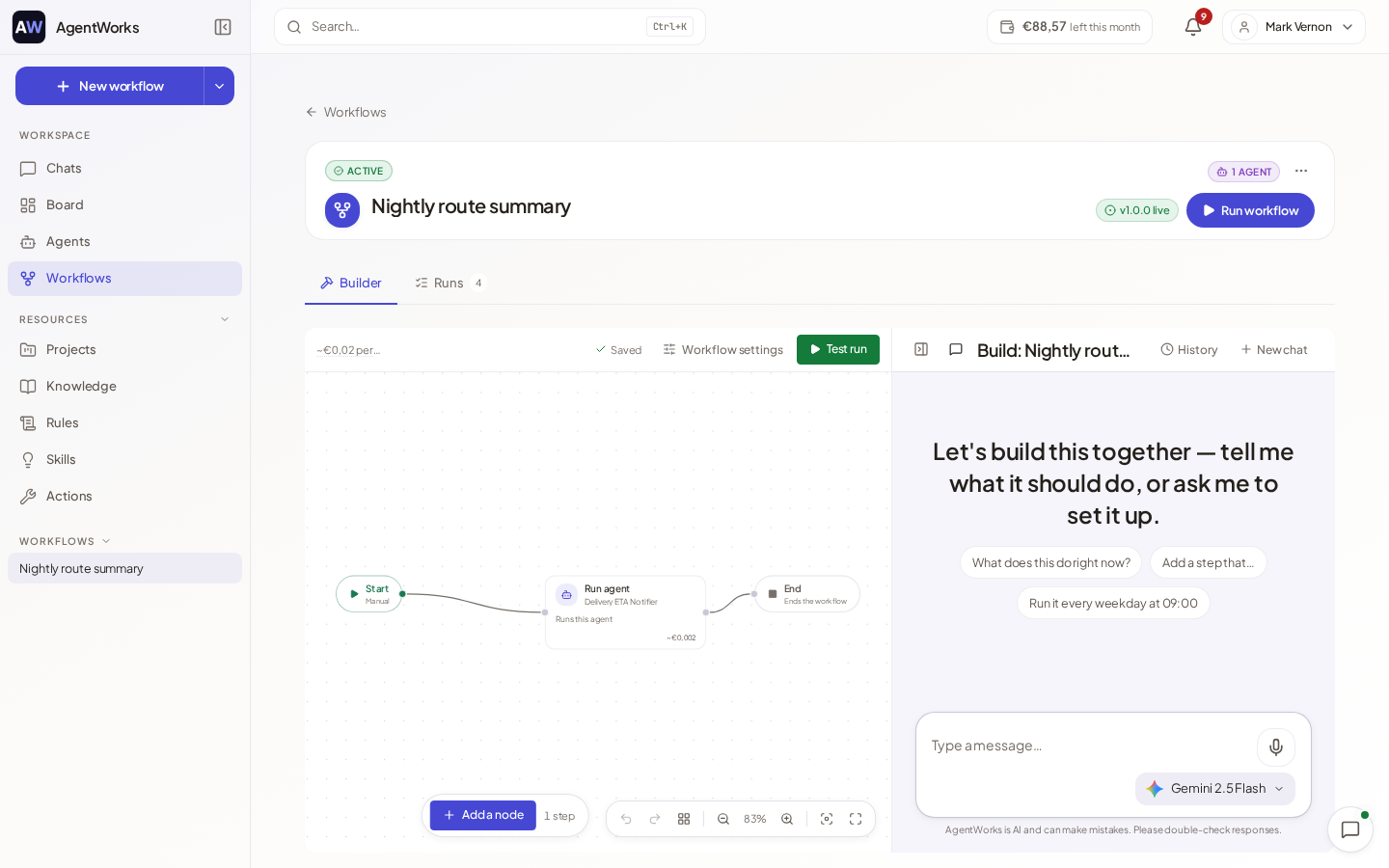
Create a workflow
Open Workflows and choose New workflow. Give it a Name and a Description, then choose how to Start from:
- Blank canvas: build it yourself, step by step.
- Describe it: write what the workflow should do and choose Start building. AI drafts the steps for you to review and edit.
- Template: choose Browse templates and copy a ready-made workflow into your workspace.
Add steps on the canvas
Add a node
Open Add a node. Search or browse the groups Agents & logic, Actions & data, Utility and Output. For an Agent node, pick one of your agents.
Connect the nodes
Drag from one node to the next to set the order. A Condition node branches (if / else) and a Merge node combines the branches again.
Configure each step
Select a node to open Configure. Give it a Label, and set its fields. To use data from an earlier step, choose Insert data; the picker lists what earlier steps produce.
Fix what is missing
A banner lists what a step still needs before a test run or deploy. The draft is saved as you go.
Step types
| Step | What it does |
|---|---|
| Agent | Runs an AI agent step. |
| Condition | Branches on a condition. |
| Merge | Combines outputs from several branches. |
| Action | Calls a governed action from a connected app. |
| HTTP request | Makes an outbound HTTP request. |
| Loop | Repeats over a list of items. |
| File Search | Searches your knowledge. |
| Web Search | Searches the public web. |
| Image generation | Creates an image from a prompt. |
| Code | Runs sandboxed Python. |
| Guardrails | Checks content, for example for personal data, moderation or jailbreak attempts. |
| Notification | Sends an in-app notification. |
| Delay | Pauses the run for a set time. |
| Approval | Pauses until a person approves or rejects. |
| Output | Records a named result. |
Approval steps
On an Approval step choose who decides: By role (workspace admin, team manager or agency admin) or Named people. Write the Approval message, optionally show the output of earlier steps next to it, and set a Timeout (hours) and what happens If it times out: Fail the run or Cancel the run. You can also Auto-approve when a condition is met; the decision is still logged.
Questions to you
On an agent step, Questions to you decides whether the step may ask you something while it runs: Use the workflow setting, Always let this step ask or Never let this step ask.
Test it
Choose Test run. It runs the current draft, including unsaved changes, with real agents, and it is billed like a normal run. Watch it run on the canvas. If a step fails, choose Fix in chat to discuss the error with the assistant, which receives the run details.
Deploy
Choose Deploy, pick a Version increment (Patch, Minor or Major) and confirm. Every step and connection is checked first, and a workflow needs at least one step. Open the Versions tab to see deployments, Re-activate an earlier one or Restore to draft.
Run always uses the deployed version. If you have changes that are not deployed, the page says Undeployed changes, and you need to deploy them before they take effect.