
Chat overview
Start a chat, choose a model, and use capabilities such as web search, files, knowledge and your connected apps.
The chat is where most work in AgentWorks starts. You ask for something in plain language, and the assistant answers, creates files, searches your knowledge or works in your connected apps. Usage is paid from your balance, see Costs.
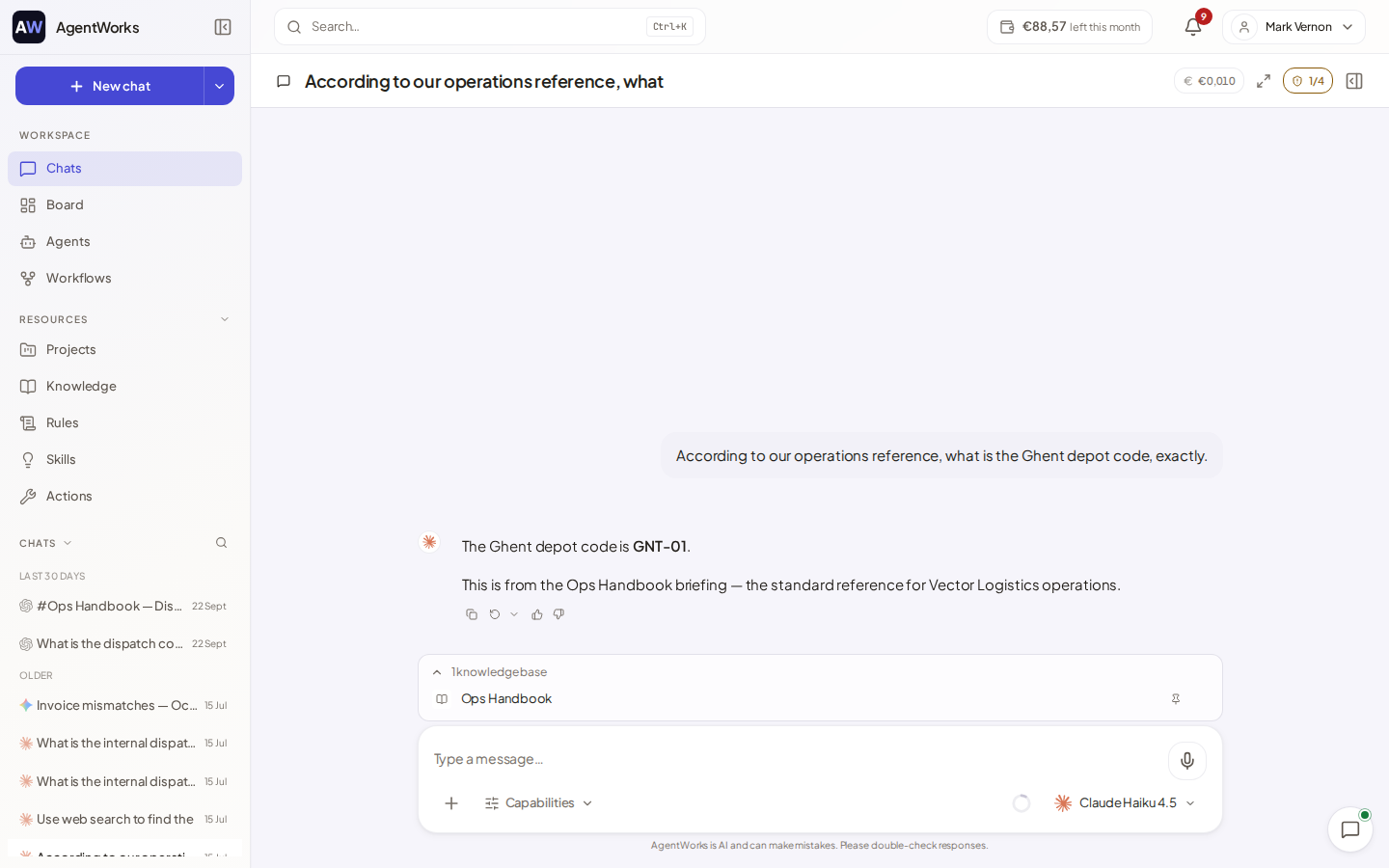
Start a chat
Choose New chat in the left-hand menu. An empty chat shows shortcut chips such as Create document, Create presentation, Create spreadsheet, Generate image, Company knowledge and Deep research. A chip puts a starting sentence in the message box; it does not send anything.
In the message box:
- Type
/to open the slash menu with tabs for Actions, Agents, Workflows, Skills, Rules, Projects and Knowledge. Pick one to attach it or run it. - Type
@to mention a colleague. - Use the paperclip menu (Add attachment or context) to upload a file, add knowledge or start an agent. See Files and documents.
- Type
/compactto summarise the chat and continue in a fresh session, or/clearto start a new chat.
Chats are listed under Chats. You can search and filter them, and share a chat with a colleague with Share this chat.
Choose a model
Open the model picker (Models) in the chat to choose which model the chat uses. The default is Auto, which picks a model for you based on your first message; a Recommended model line in the chat shows which one it chose.
A few things to know:
- Models are grouped, for example EU-hosted and US-hosted, and models that need Business carry a Business label. On Free you see Available on Business — upgrade to switch models when you click one of those.
- Some models offer Enable thinking for complex tasks and an Effort setting that controls how much the model reasons before answering.
- Switching model in a running chat makes the assistant re-read the conversation once, so the next answer may take a little longer and cost slightly more. The picker asks you to confirm and offers Compact chat first, then switch.
Your workspace admin can set a Workspace default model for new chats.
Capabilities
The Capabilities menu in the message box switches abilities on for this chat:
| Capability | What it does |
|---|---|
| Web search | Lets the assistant look things up on the web. |
| Image generation | Creates images from a description. |
| Autopilot | When on, the assistant keeps working until the request is done. You still approve each risky action. When off, it pauses after every step. |
| Apps | Shows and connects the apps the assistant can use. See Connected apps. |
| MCP servers | Appears when you have custom servers; switch each on or off for this chat. |
| Work in a project / Work in a folder | Use a project's files and instructions, or save the files this chat creates into a folder you pick. |
Good to know
- The assistant is AI and can make mistakes. Check important answers. When it used your documents, it cites them: see Knowledge.
- Anything that changes something outside the chat asks for your approval: Approvals.
- If your balance or monthly limit runs out, the answer stops with a message and a link to top up or manage budgets.