
Connect apps
Connect apps for yourself or for the whole workspace, reconnect or disconnect them, and understand your plan's connection limit.
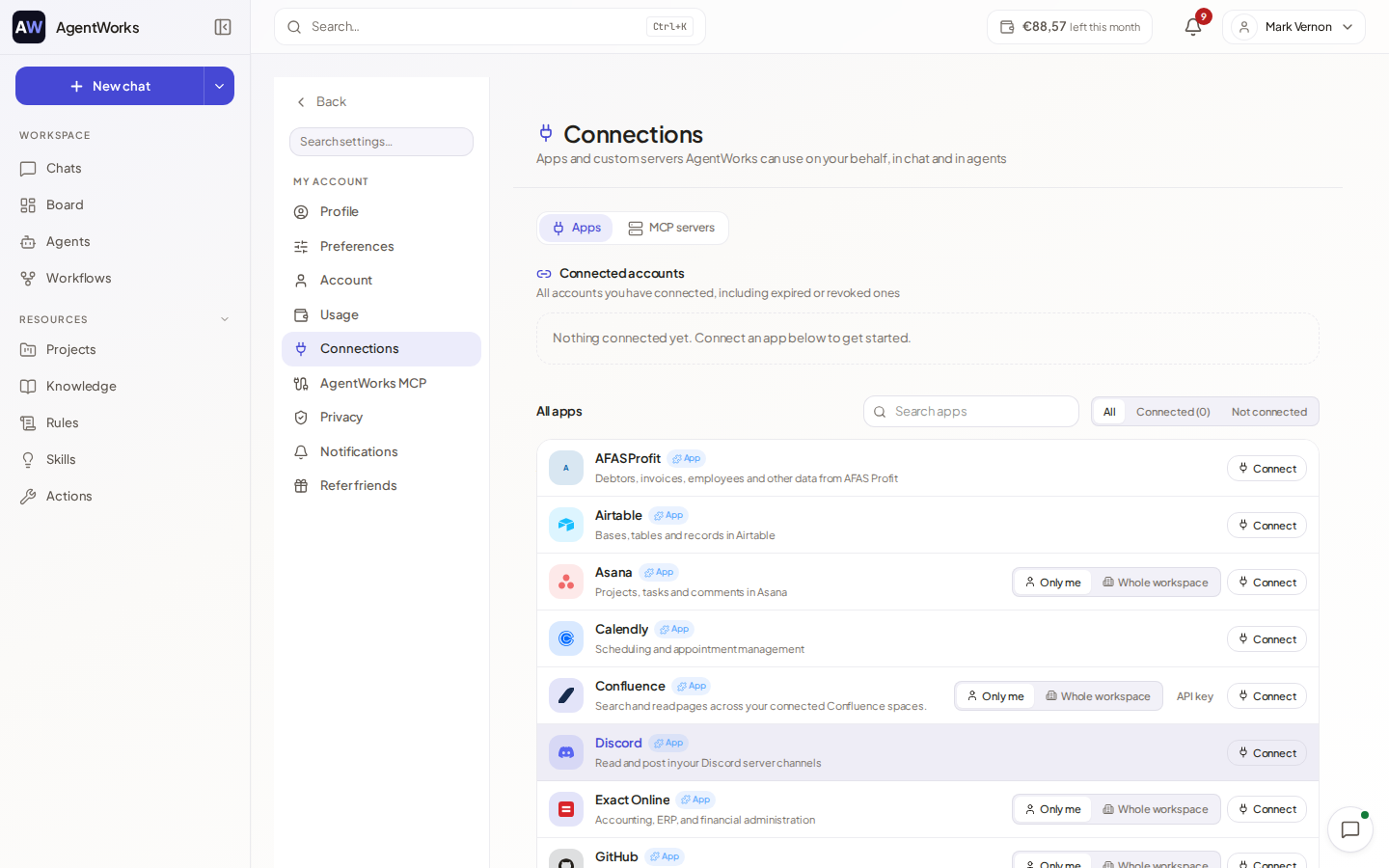
A connection links AgentWorks to an app such as Gmail, Google Drive, Slack or Notion, so the assistant and your agents can read and act in it. Connections are made under Actions, on the Apps tab, and you can also connect an app from Actions, from a chat or while building an agent.
Connect an app
Open Connections
Go to Actions and open the Apps tab. Search with Search apps, or filter by Connected and Not connected.
Choose Connect
Find the app and choose Connect. A sign-in window from the provider opens; allow pop-ups if your browser blocks it. Sign in and accept the permissions. If you close the window early, nothing is connected: try again.
Choose who can use it
If you are a workspace admin you are asked Who can use this connection: Only me or Whole workspace.
Some apps use a key or token instead of a sign-in. For these, choose API key, paste the key, and fill in any extra fields the form asks for, such as a site URL or subdomain. The form has a Where do I get this? hint. Examples are Slack, Notion, Confluence, Zendesk and Trello.
Personal or whole workspace
| Only me | Whole workspace | |
|---|---|---|
| Who can use it | Only your own chats and runs. | Everyone in the workspace. Agents keep working when someone else starts the run. |
| Who can set it up | Anyone. | Workspace admins. |
For an agent that several people use, or that runs on a schedule, use a workspace connection. A personal connection only works for its owner. In the Connections list, workspace connections show Shared by workspace.
Reconnect and disconnect
The Connected accounts list on the same page shows every account you connected, including expired or revoked ones, with its status: Connected or Needs reconnect.
- A banner tells you when connections need attention. A connection can stop working when the provider expires or revokes access.
- Choose Reconnect to sign in again.
- When an app asks for new permissions, you see New permissions available. Everything you use today keeps working, and reconnecting activates the new actions.
- Choose Disconnect to remove it. Agents and chats stop using that account until you connect it again.
- Open View what this connection unlocks to see which actions it gives your agents and chats.
Your plan's connection limit
The Free plan has a limit on connected apps and MCP servers together. The page tells you how many you use, for example "4 of 4 connections on your plan (apps and MCP servers together)". When you reach it, the Connect button becomes Upgrade to connect. Disconnect an app or MCP server you no longer need, or upgrade to Business for unlimited connections.
Trouble connecting
- Your browser blocked the popup: allow pop-ups for AgentWorks and try again.
- This app is not available on your workspace yet: ask your workspace admin to enable it.
- You do not have permission to connect this app: ask a workspace admin to connect it for you.