
The Workspace console
Find your way around the admin area where you manage people, access, money and security for your organisation.
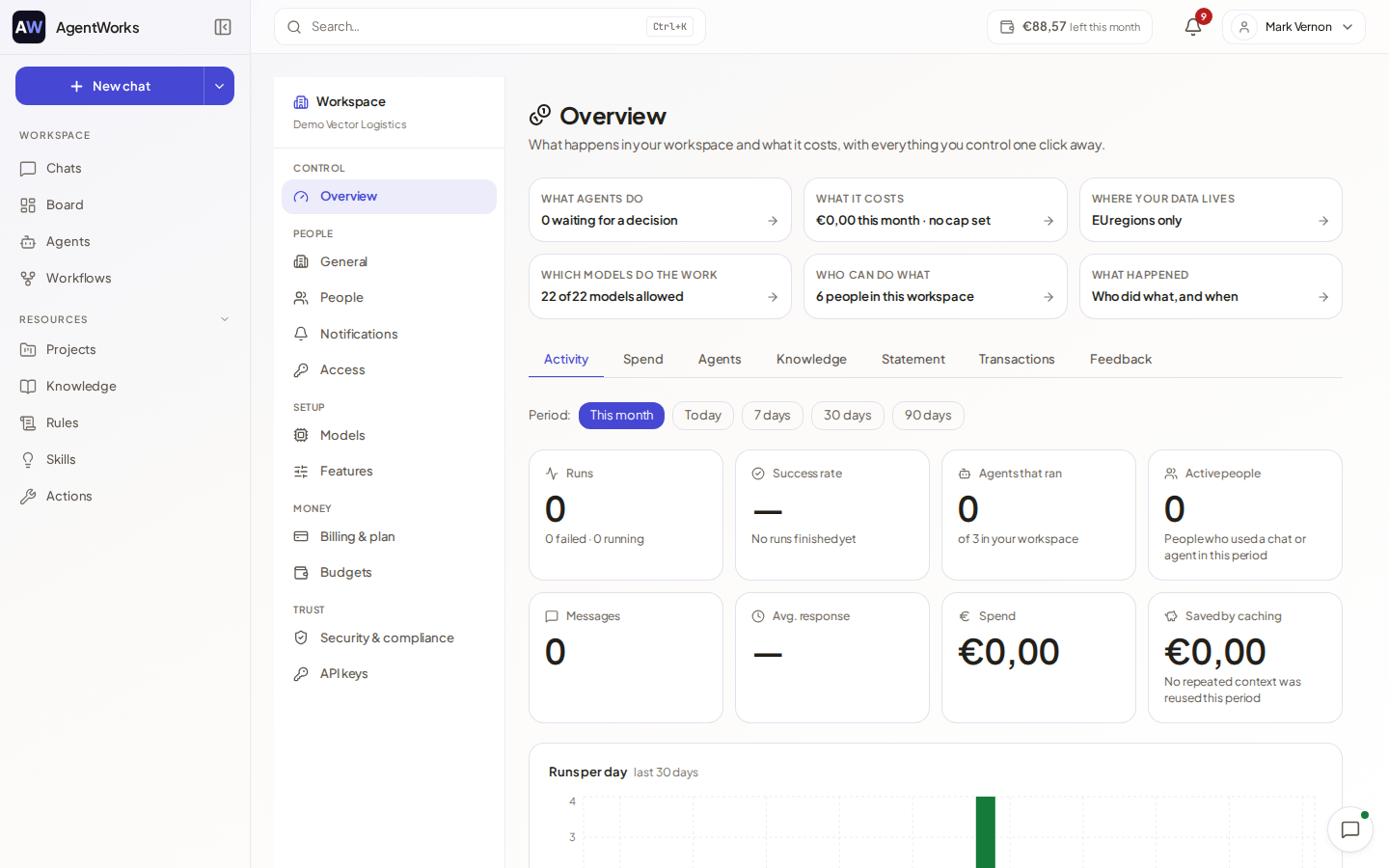
The Workspace console is the admin area of AgentWorks. It is where a workspace admin decides who is in the organisation, what they can use, what it costs and what has happened. Open it from the app with Workspace; use Back to app to return.
Who sees what
Workspace admins see every section. Team managers see a smaller console limited to the teams they manage: Overview, People, Access, Models and Budgets. Members do not see the console at all. See Roles and permissions.
The sections
The navigation is grouped under five headings.
| Group | Section | What you do there |
|---|---|---|
| Control | Overview | See what happens in the workspace and what it costs: activity, spend, decisions waiting. See Usage and insights. |
| People | General | Workspace profile, Company & legal, Email domains, Value of time, and Close workspace (workspace admin only). |
| People | People | Invite people and manage teams. See People and teams. |
| People | Notifications | Choose which notifications are required for everyone. See Notifications. |
| People | Access | Decide who can use which agents, workflows, knowledge and more. See Access. |
| Setup | Models | Choose which AI models the workspace may use. |
| Setup | Features | Switch parts of the app and chat capabilities on or off for everyone. |
| Money | Billing & plan | Your plan, balance, payment method and invoices. See Billing and plans. |
| Money | Budgets | Monthly limits per organisation, team and person. See Budgets and balance. |
| Trust | Security & compliance | Compliance settings and the audit log. See Security. |
| Trust | API keys | Keys for developers. See API keys. |
A section marked Business or Enterprise in the menu needs that plan. You can still open it; it explains what the plan adds. Security & compliance is marked Business.
The Control view
Overview opens on a Control strip with six answers, each linking to where you change the setting:
- What agents do: how many actions are waiting for a decision. Agents ask before they send, book or change something, and a person approves, edits or rejects.
- What it costs: spend this month against your budget, with a link to budgets and limits.
- Where your data lives: a link to Security & compliance.
- Which models do the work: how many models are allowed.
- Who can do what: how many people are in the workspace, with a link to Access.
- What happened: a link to the audit log.
General settings
Under General you edit the workspace profile and company details, the email domains that belong to the organisation, and the hourly staff cost that agent cards use to show what the time an agent saved is worth. Close workspace cancels the subscription and schedules all data for deletion within 30 days; it cannot be undone.