
People and teams
Invite people to your workspace, organise them into teams and invite a team manager.
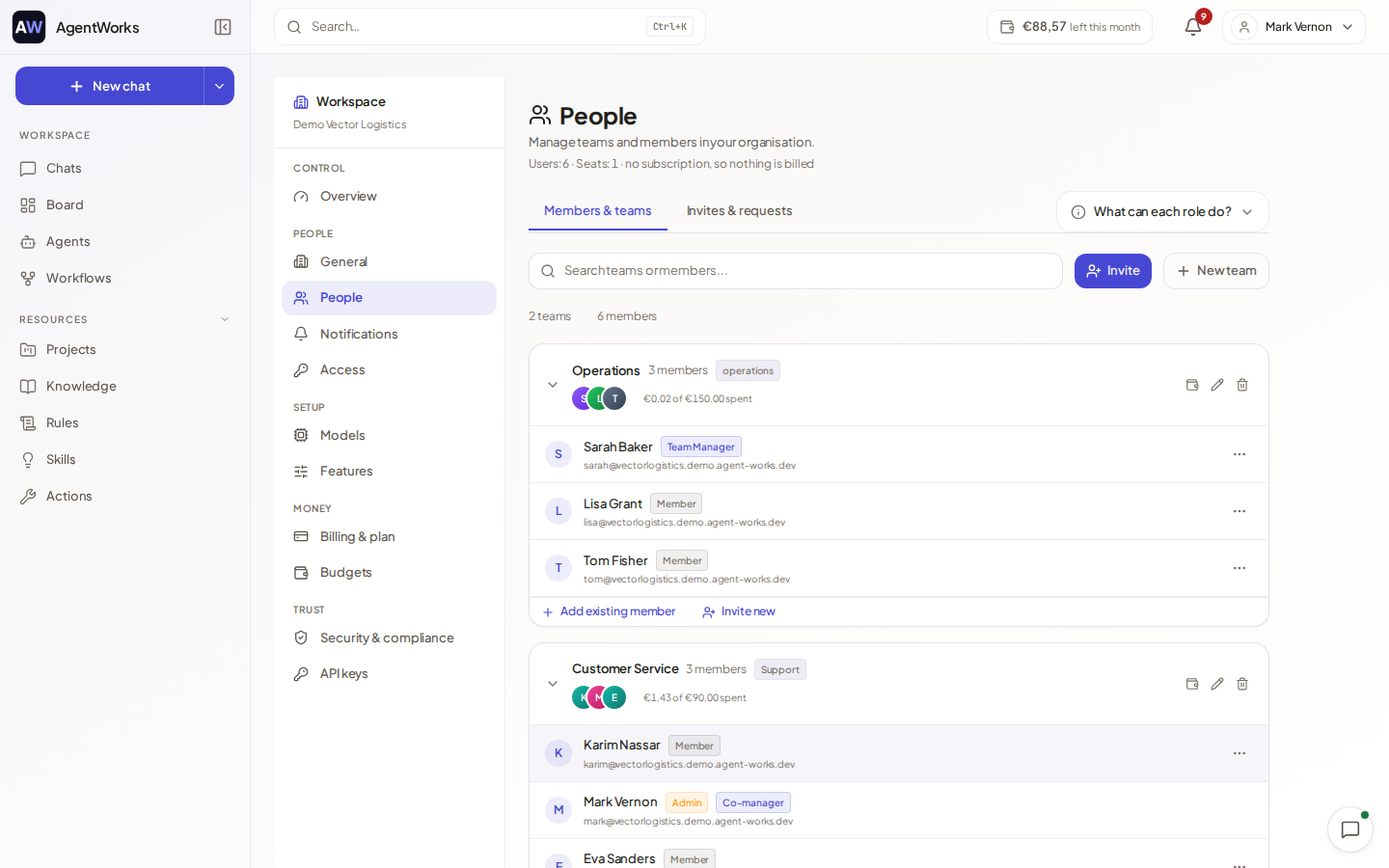
The People section lists everyone in the workspace and the teams they belong to. Workspace admins invite people, create teams and change roles here. It has two tabs: Members & teams and Invites & requests.
Invite someone
Open People
In the Workspace console, open People and choose Invite.
Pick how to invite
Use Email invite to send an invitation to one address. Use Invite link to create a link you can share yourself.
Choose a role
Choose Member or Admin. You can also pick a team. For a Team Manager, you must choose the team the person will manage.
Send
Choose Send invite, or Generate invite link.
An email invitation is valid for 7 days; until then you can withdraw it under People. For an invite link you choose how long it works (1 day, 7 days or 30 days) and how often it can be used (Once, 5 times, 25 times or Unlimited). Anyone with the link can use it until it expires or runs out. Revoke it under Invites & requests with Revoke.
If your plan has a seat limit, the invite dialog shows what the extra person costs per month. On a paid plan each person who joins takes a seat. See Billing and plans.
Teams
Teams are part of the Business plan: New team asks you to upgrade on Free. Create a team, then add existing people with Add existing member or invite new people straight into it. Use Edit team to rename it or change the description.
Everyone in the workspace is also in an automatic team that includes all members. It cannot be renamed or deleted and is not used for budgets.
Invite a team manager
Team managers look after one or more teams. Invite one as above, choosing Team Manager and the team. To make an existing member a manager, open the ⋯ menu on their row and choose Promote to manager; Demote to member reverses it. Teams need the Business or Enterprise plan.
A team manager cannot invite people directly. They choose Propose a teammate (Submit for review), and the proposal appears under Pending invite proposals for a workspace admin. You choose Approve, which sends the invitation, or Decline, with an optional reason the manager sees.
Manage a person
The ⋯ menu on a person's row offers, depending on your role:
- Change role, Promote to manager, Demote to member
- Money rights…: whether the person may add money and set monthly limits. See Budgets and balance.
- Change email, Reset password
- Disable user and Enable user, Remove from team
- Delete user: a soft delete with 30-day retention; the person loses access immediately.
The last active workspace admin cannot be demoted or removed. Make sure there is always another admin first.