
API keys
Create a developer API key with the right scopes and expiry, change its scopes later, and revoke it.
A developer API key lets your own systems call AgentWorks. A key belongs to one workspace and acts as the person who created it: it can do no more than that person's role allows, and it stops working when that person is deactivated. Usage through a key is billed to the workspace. Only workspace admins see API keys in the Workspace console.
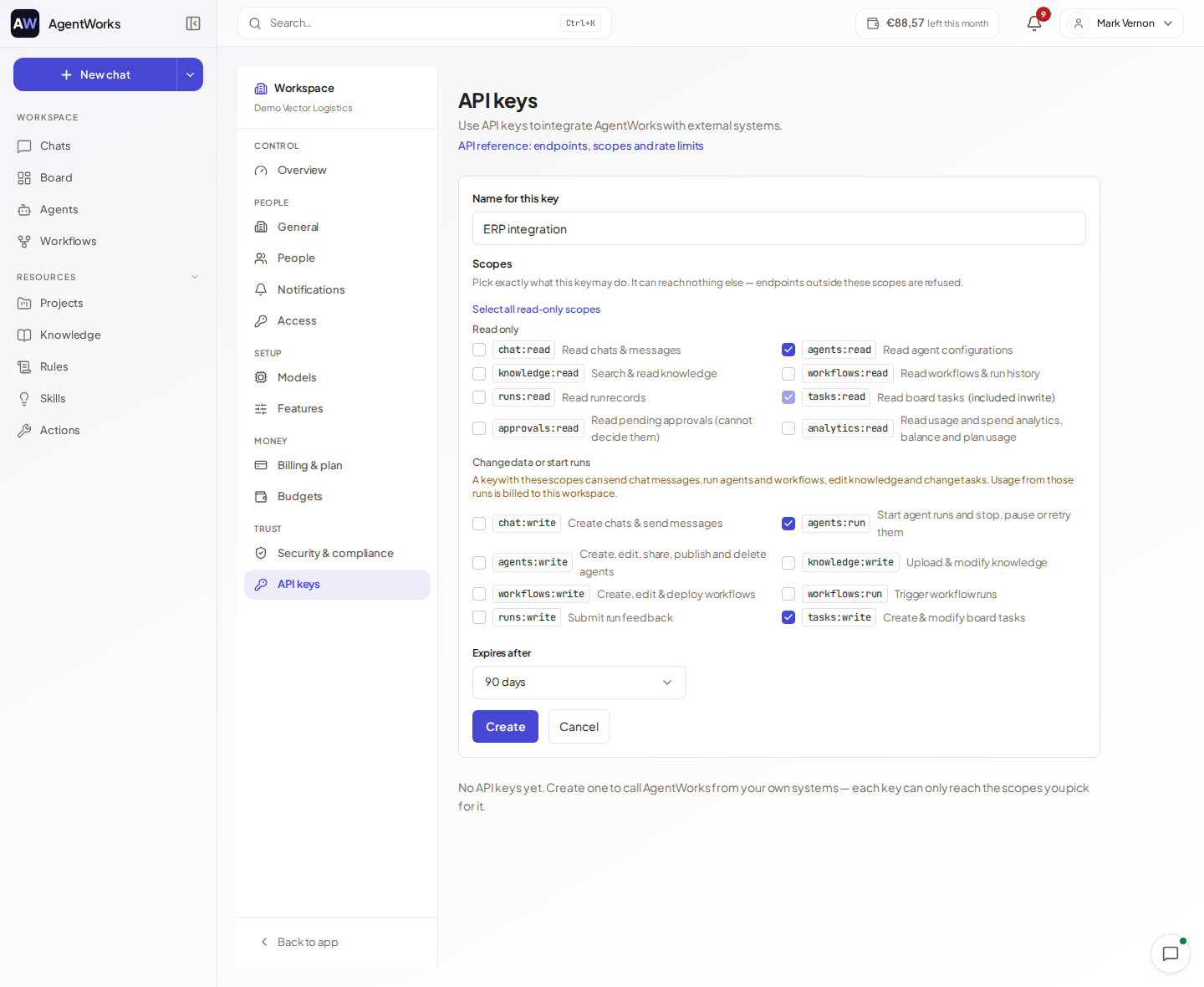
For the technical side, such as how to send the key with a request, see Authentication.
Create a key
Open API keys
In the Workspace console, open API keys under Trust and choose New API key.
Name it
Give the key a Name for this key, for example "Production integration".
Pick scopes
Choose exactly what the key may do. It can reach nothing else: requests outside its scopes are refused, and you must pick at least one scope.
Choose an expiry
Under Expires after, choose 30, 90, 180, 365 or 730 days, or Never. The default is 90 days.
Create and copy
Choose Create, then Copy the key. Save this key — you will only see it once.
A workspace can have up to 10 active keys. For an integration that must outlive one person, create the key from a shared admin account.
Scopes
Scopes are split into Read only and Change data or start runs. Use Select all read-only scopes for a read-only key.
| Scope | What it allows |
|---|---|
chat:read, chat:write | Read chats and messages; create chats and send messages |
agents:read | Read agent configurations |
agents:run | Start agent runs and stop, pause or retry them |
agents:write | Create, edit, share, publish and delete agents |
knowledge:read, knowledge:write | Search and read knowledge; upload and modify it |
workflows:read, workflows:write, workflows:run | Read workflows and run history; create, edit and deploy; trigger runs |
runs:read, runs:write | Read run records; submit run feedback |
tasks:read, tasks:write | Read board tasks; create and modify them |
approvals:read | Read pending approvals. The key cannot decide them. |
analytics:read | Read usage and spend analytics, balance and plan usage |
agency-usage:read | Agencies only: read each client's monthly usage |
A write scope includes its read scope. When you tick a write scope, the matching read scope is shown ticked and locked and marked (included in write). This does not apply to agents:run or workflows:run: running does not imply reading.
A key with Change data or start runs scopes can send chat messages, run agents and workflows, edit knowledge and change tasks. The usage is billed to your workspace. Keep such keys secret.
Approval and confirmation settings and PII policy can never be changed with a key.
Expiry and warnings
A key set to Never keeps working until you revoke it, and the form warns you of that. Prefer an expiry and replace the key before it ends. Admins are notified 7 days and 1 day before a key expires.
The key list also flags keys that need attention:
- Expired — this key no longer works
- Expires in … days, shown within 14 days of the end date
- Not used in 90 days — consider revoking it
Each key shows when it was Created, Last used and when it Expires.
Change scopes later
Choose Edit scopes on a key, change the ticks and choose Save scopes. Changes apply to the key's next request, and the key itself stays the same, so you do not need to redistribute it.
Revoke a key
Choose Revoke on the key and confirm with Are you sure?. It stops working immediately.
Agency workspaces
A key created in an agency workspace works inside that agency workspace only. It cannot open, read or change the clients' workspaces. With agency-usage:read it can read each client's monthly run, token and cost totals, and nothing else.