
Board
Track work as tasks on a board, assign a task to a colleague or an agent, and respond when an agent needs your input.
The Board is a task board for your team and your agents. Each task has a title, an owner and a status, and a task can be handed to an agent that then works on it and reports back in the task.
The board
Open Board in the left-hand menu. Tasks sit in columns that show their status:
| Column | Meaning |
|---|---|
| Backlog | Rough ideas, not ready to start. |
| To do | Waiting to be started. |
| In progress | Agents or people are working on it. |
| Review | Awaiting human approval. |
| Done | Completed successfully. |
| Blocked | Stuck, for example on a dependency or a failed run. |
| Archived | Shelved or cancelled, kept for history. |
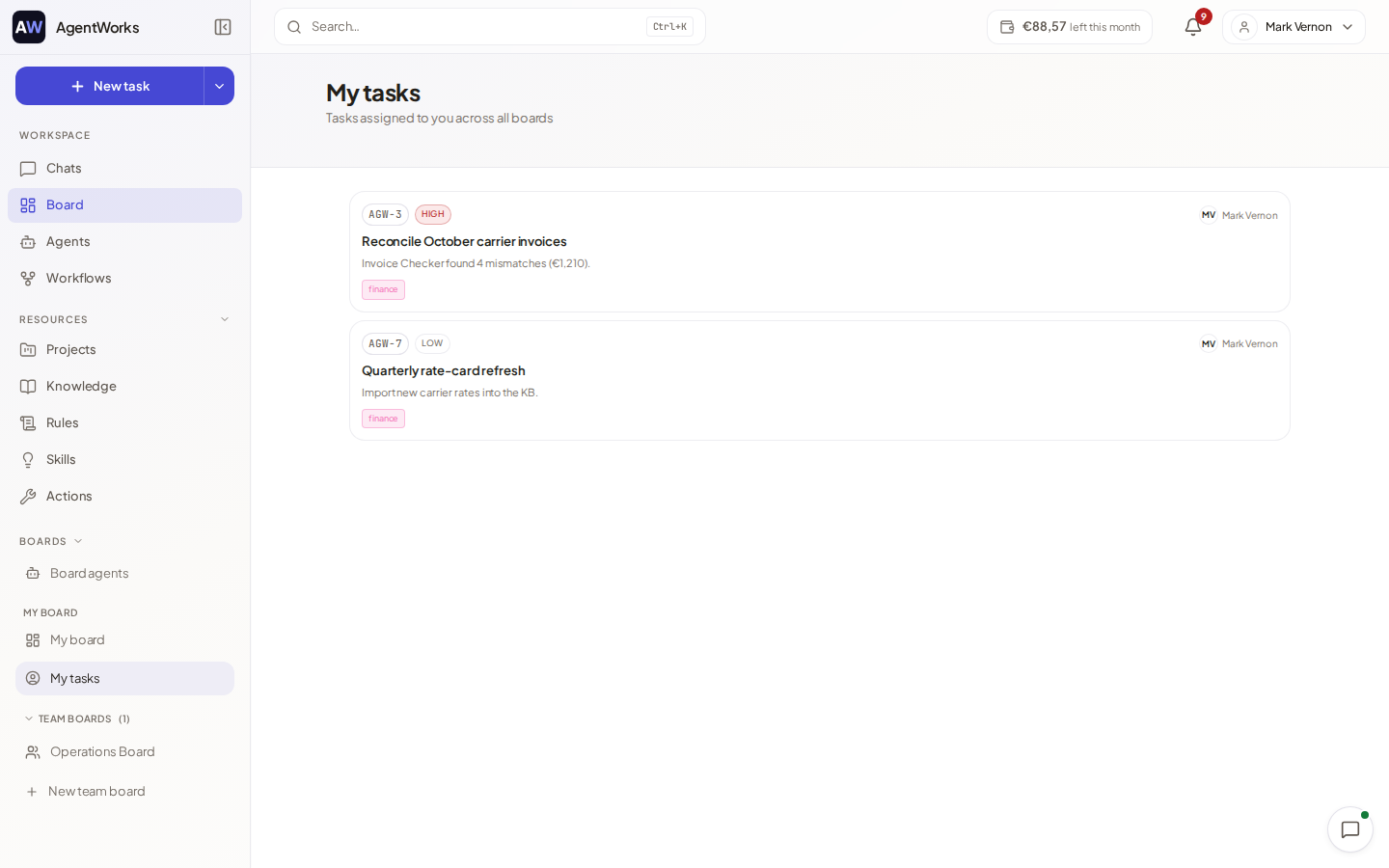
Tasks that failed or were cancelled are collected under Failed & cancelled, and Show them reveals them. Switch between Board view and List view, search with Search tasks, and filter by priority, status, due date, assignee or labels. My tasks lists the tasks assigned to you across all boards.
Create a task
Choose New task. Fill in:
- A Task title and a Description.
- Assignee: a person or an agent.
- Priority, Due date, Labels and Status.
- Optionally a Project, a Budget ("Max per task") and Requires approval.
- Acceptance criteria that say when the task counts as done.
Choose Create task. You can also ask the assistant in a chat to create a task. It shows an approval card first, see Approvals.
Assign a task to an agent
Let the agent pick up tasks
Open Board agents (reached from the board). Choose which agents may work on your tasks on their own and switch Enable watcher on. For each one you can set Tasks at once, a Spending limit (per month or one-time) and a Model. What it spends comes from your wallet.
Assign the task
Set the Assignee of the task to the agent, or mention the agent by name in a comment. The agent starts, usually within a second, and moves the task to In progress. You can also drag a task to In progress to start an agent session.
Follow along
Open the task. The Activity timeline shows the agent's run, step by step, and View last run opens it. Choose Stop run to stop it.
If an agent has not been enabled to pick up tasks, the task shows a hint that it will sit idle, with a link to Board agents.
You can also create a lightweight New board agent there: give it a name and instructions, then assign it tasks.
When an agent needs input
An agent can ask you a question, or wait for a decision. The board shows these tasks under the Needs input filter in the Activity bar, and the task shows its run as waiting for you. Open the task and answer in the Activity timeline using Leave a reply. Your answer is recorded as Answered the agent and the agent continues.
If the task has Requires approval, then when the work is finished the task waits in Review until an approver signs it off. Choosing specific approvers is part of Business; on Free anyone who can see the task may approve.
A task whose estimated cost is above a threshold can be moved to Blocked for manual review (Auto-block high-cost tasks for review). A workspace admin sets this, and can switch the board off for everyone, under Board policy.
Plans
On Free the board has a limit on the number of boards and open tasks, shown as "used of max open tasks". When you reach it, finish or archive a task, or upgrade to Business. Free also limits how many agents can pick up tasks automatically.